A bunch of my friends and I are participating in one of those things where you walk around and somehow it cures a disease. I’ve never been the biggest fan of these (I’d rather just donate money than have some sort of gimmick), but if that’s what it takes to get people to donate, then I’m for it. Plus I’m sure those who have a closer personal connection to the cause get something out of it.
Anyway, as I was signing up, I was reminded of my previous post: Wysz hates charities! The registration process was confusing and long, and if I hadn’t already committed to my friends, it’s something I honestly would probably have given up on if I was just doing it on my own. (I’d still donate, just not participate.)
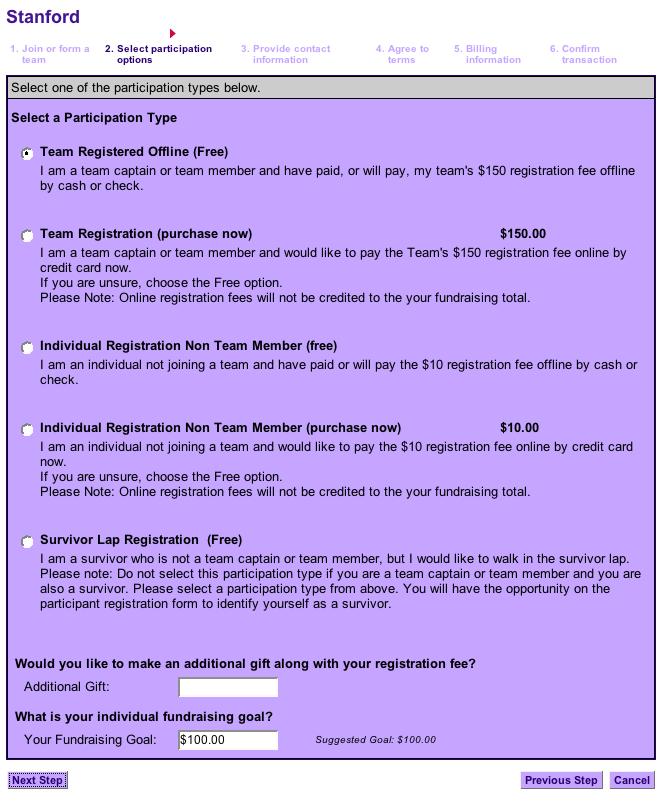
Here’s the first page I had to deal with, which confused me:
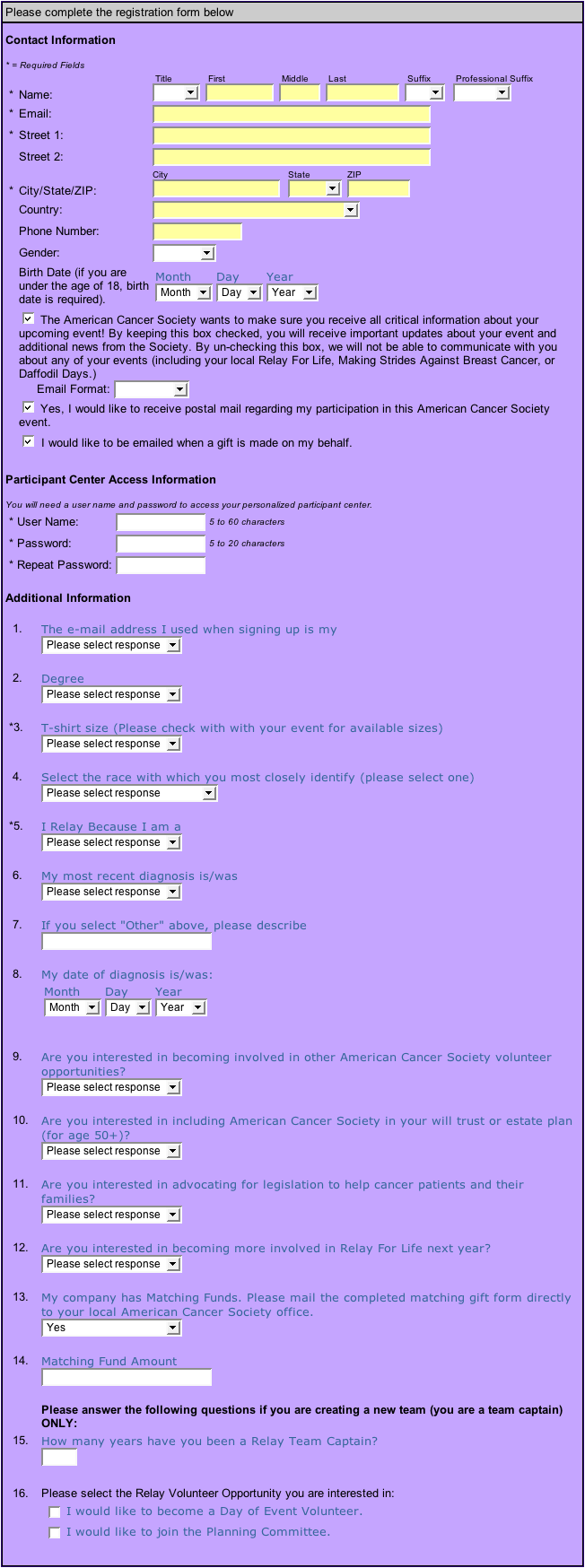
Then, I saw this form, which filled my vertical 24″ monitor:
I finally got through it (with help). You can help me reach my goal by donating here. If I’ve met my goal, help out Koklynn, Charlene, Reid, or Nelson. And as I already had to specify earlier today, it’s not for cancer, it’s against it. While you have your credit card out, you could also help to fight Alzheimer’s. It’s an easy form.
I recently heard from Koklynn (via Nelson) that Google Analytics had changed their tracking code. I like to keep things up to date, so I started the process of replacing the old code with the new. It took about 10 seconds to update the template on my WordPress-powered blog, but I also have a bunch of static HTML files sitting around from my old site.
Usually when I want to do a multi-file find and replace, I just fire up TextWrangler and go at it. However, I only knew how to specify the folder to search if I could access it from the Finder. I didn’t want to download, edit, and then re-upload all of my files, and the current Finder won’t mount volumes over SFTP. Smart people can probably just SSH into their accounts and type a few lines to do what I wanted, but I’m not smart. I needed to find a way to use a GUI to find and replace over a bunch of HTML files via SFTP.
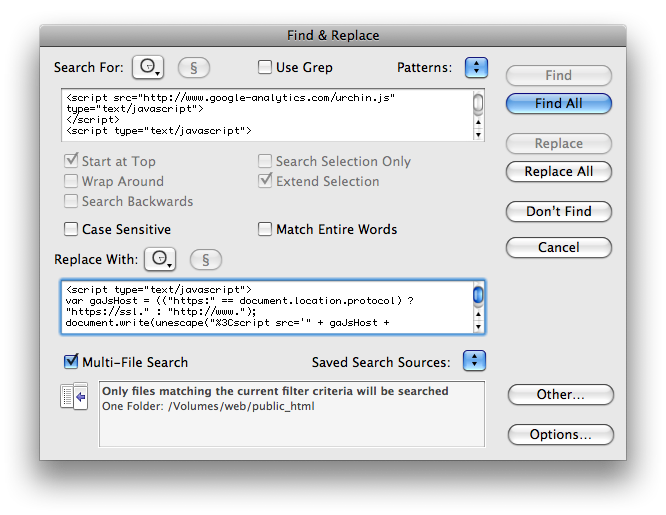
I quickly discovered that TextWrangler can open files via SFTP, but I couldn’t figure out how to specify the path to search in the multi-file search. I also tried dragging the folder I wanted over from Cyberduck, but that didn’t work either. I needed to get these files from the Finder. I then remembered that Matt had been using macFUSE to do FTP uploads from the Finder. I hadn’t really read up on macFUSE, but it sounded like something could would work for me. So I went ahead and installed the core package, and then found MacFusion, which gave me a nice GUI, allowing me to quickly mount my server account in the Finder. (See update at bottom of post.) I went ahead and dragged the public_html folder to the sidebar, so I was able to quickly locate it in the Find/Replace window of TextWrangler after clicking on Other:
I also set up a filter so TextWrangler would only check the HTML files, by clicking on Options and then Edit Filter.
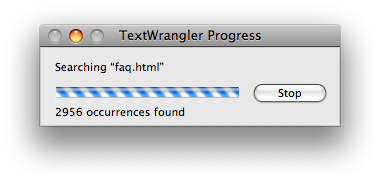
After that, I just sat back and let it go:
I think I got everything converted to the new code, but if you find any of the old stuff lying around go ahead and let me know.
But wait! This post isn’t over yet; I have three more Mac geek-related things:
1: This is my first post with WordPress 2.5 using images. This is notable, because when I first tried the image uploader, I got an HTTP error. After some searching, I learned that this is caused by a problem with the Mac version of Flash. A variety of solutions were proposed, but it looked like they all involved either installing a plugin or disabling a security feature, two things I don’t like to do without good reason. Then, I noticed on the WordPress bug filed for the issue that the fix was simply to disable the Flash uploader for Macs if the mod_security module is enabled. This fix isn’t in the current release of WordPress, but it was easy enough for me to create the same effect without modifying any source code. I just went into Safari’s preferences, opened the Security tab, and unchecked Enable plug-ins. That disabled Flash, and I was able to use the alternate uploader with no problem.
2. Speaking of images, it’s nice that when I do a ⌘-Shift-4-Space capture of a window it includes the drop shadow, but I’d also like the option to not capture the shadow without having to manually select the window using the crosshairs or opening Grab or another utility.
3. I like that I can use the familiar Mac-standard ⌘I and ⌘B keyboard shortcuts in the WordPress 2.5 visual editor. I don’t think this worked in earlier versions.
Update: As I was closing out my windows for the day I realized that MacFusion, although cool, was unnecessary. I had already mounted my account on the desktop successfully via sshfs.